
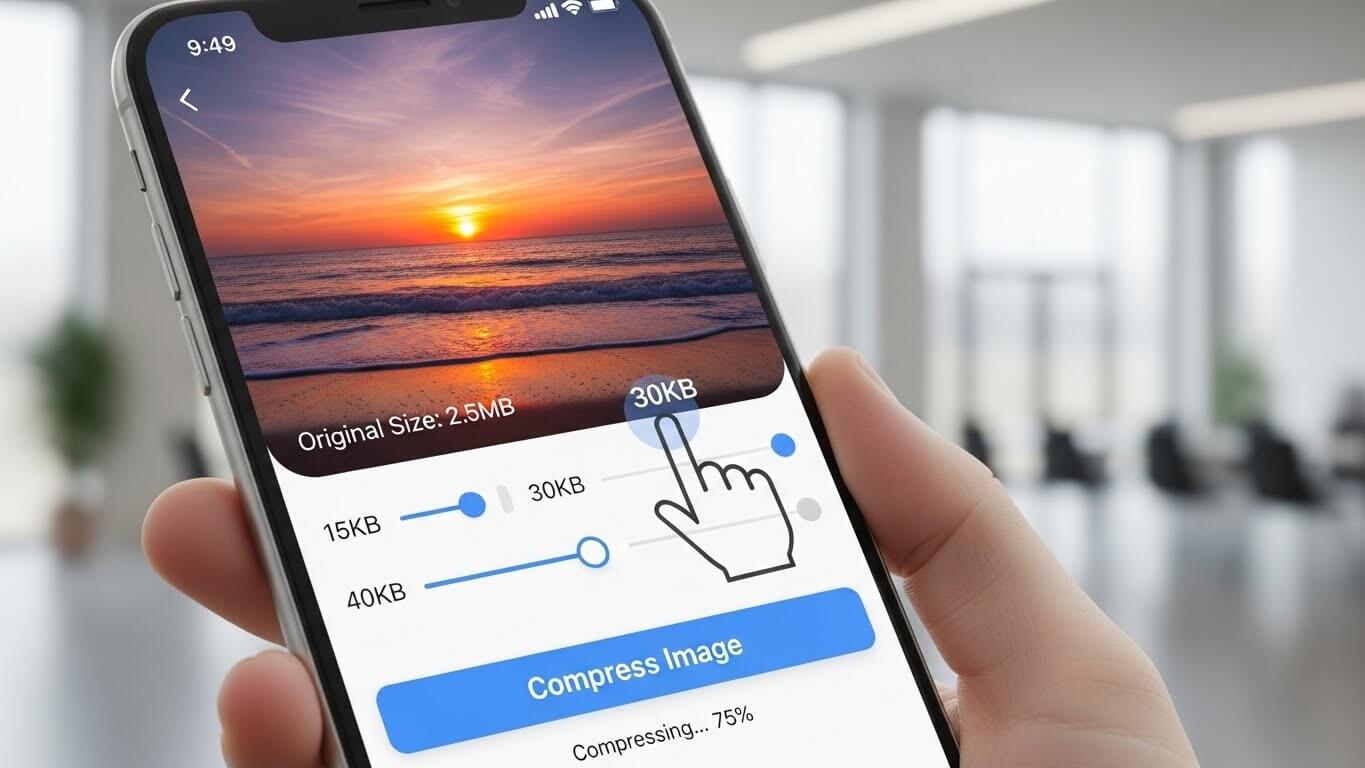
Images play an essential role in our everyday digital activities—whether you are sharing photos on social media, submitting documents online, or optimizing your website speed. But large image files can cause issues like slow uploads, form rejections, or increased storage usage. That’s why many smartphone users look for easy ways to reduce image sizes directly from their phones and search for queries like how to compress image size in mobile, because mobile compression is the fastest and most convenient method today.
This detailed guide will help you understand everything about image compression on Android and iPhone. You will learn how to reduce file sizes to common requirements like 15KB, 30KB, and 40KB. You’ll also learn how to use mobile apps, built-in features, and online tools such as https://mbtokb.net/ to compress images instantly.
Why Compressing Image Size Is Important on Mobile
Before learning the techniques, it’s important to understand why image compression is so necessary. The smaller the file, the easier it becomes to use across digital platforms.
1. Faster Uploads
When you compress images, uploading becomes much faster—even on slow mobile data networks.
2. Required by Online Forms
Government portals, school applications, and job forms often ask users to compress image to 15kb or compress image to 30kb or even down to 40KB.
3. Save Storage Space
Modern smartphones capture high-resolution photos that take up significant space. Compression helps you store more photos without deleting anything.
4. Smoother Sharing
Apps like WhatsApp and Gmail reduce image quality automatically, but using proper compression gives you better control.
Understanding Image Size: KB, MB, Resolution, Format
To successfully compress an image to a specific size, you must understand what affects the file size.
1. Resolution
More pixels = larger file.
Example: 4000×3000 pixels → very large file.
Lowering it to 1200×900 significantly reduces size.
2. File Format
- JPG = small and ideal for compression
- PNG = bigger, used for transparency
- WEBP = excellent compression with good quality
3. Quality Percentage
Reducing quality from 100% to 80% can cut file size in half without noticeable difference.
How to Compress Image Size in Mobile
Many users wonder how to compress image size in mobile, whether they use Android or iPhone. Smartphones already have built-in tools and many apps available for resizing and compressing images.
Here are the simplest ways:
Method 1: Using Online Tools (Best for Exact KB Compression)
The easiest way to compress images to 15KB, 30KB, or 40KB is by using an online tool. These tools allow you to select the exact output size.
Recommended Tool:
This website offers multiple tools including image compression, file size conversion, and MB-to-KB conversion.
Steps:
- Open mbtokb.net on your phone.
- Upload your image.
- Enter your target size (15KB, 30KB, 40KB).
- Download the compressed file.
How to Compress Image to 15KB
The requirement to compress image to 15kb frequently appears in school admissions, online ID uploads, and signature submissions.
To achieve such a small file size, you often need to reduce both quality and resolution.
Steps:
- Resize image to small resolution (around 300×300).
- Convert PNG → JPG.
- Use online compression with target size 15KB.
- Download the minimized file.
Even if your photo is high-quality, it’s still possible to compress image to 15kb using correct techniques.
How to Compress Image to 30KB
If you need to compress image to 30kb, you have a little more flexibility than 15KB.
Many online forms accept 30KB limits for passport photos, certificates, and profile pictures.
Steps:
- Upload image to an online compressor.
- Reduce quality to around 50–60%.
- Resize dimensions moderately.
- Export as JPG.
Web tools make it easy to compress image to 30kb without losing too much clarity.
How to Compress Image to 40KB
Some platforms ask users to compress image to 40 kb, especially for documents that require better clarity.
Achieving a 40KB file size is relatively simple because you can maintain decent quality while meeting size limits.
Steps:
- Resize the image slightly.
- Reduce quality to 70–80%.
- Select JPG format.
- Use a target-size compressor.
Most form submissions also allow users to compress image to 40kb, especially for profile photos and certificates.
Second Usage of 40KB Keywords
Many mobile users struggle when asked to compress image to 40 kb, because they don’t know which tools allow exact size selection. Using online tools like mbtokb.net simplifies the process.
Additionally, for better quality, you can simply adjust the image dimensions until you can compress image to 40kb without losing clarity.
Compress Image Size in Mobile
Understanding how to compress image size in mobile gives you complete flexibility for uploading documents anywhere—college portals, government forms, or job websites.
Method 2: Using Mobile Apps
Apps are convenient for Android and iPhone users.
Recommended Apps:
- Photo Compressor
- Lit Photo
- Image Size App
- Compress Image Pro
How to Use Them:
- Download any app.
- Upload the photo.
- Choose output size in KB.
- Save to the gallery.
Method 3: Using Built-In Phone Features
Many smartphones now include compression tools.
Android:
- Use Google Photos editing options.
- Change resolution and export.
iPhone:
- Use Files app
- Use “Reduce File Size” shortcuts
Tips for Better Image Compression
✔ Use JPG instead of PNG
✔ Lower resolution before lowering quality
✔ Crop unnecessary background
✔ Use target-size tools for exact KB output
✔ Always keep an original backup
Common Problems & Solutions
Problem 1 – Image becomes pixelated
Solution: Reduce resolution more slowly.
Problem 2 – Cannot reach 15KB
Solution: Convert to JPG and reduce color details.
Problem 3 – File still large even after compression
Solution: Crop or simplify the image.
Problem 4 – Website rejects upload
Solution: Check dimensions and confirm JPG format.
Conclusion
Compressing image size on mobile is now easier than ever. With the right tools, you can reduce photos to 15KB, 30KB, or 40KB quickly without losing too much quality. Online tools like mbtokb.net make it extremely simple to meet exact upload requirements for government portals, job applications, and educational websites.
Whether you want small images for smoother sharing or need to fit strict KB limits, this guide gives you everything you need to compress images effectively on any smartphone.
FAQs
Q1. Can I compress images without losing quality?
Yes. Use lossless compression or WEBP format.
Q2. What is the easiest tool for compression?
Online tools like mbtokb.net are easiest for mobile users.
Q3. How do I know the image size?
Check file details in your gallery or Files app.
Q4. Can I compress multiple images at once?
Many apps and websites support batch compression.
Q5. Does compression affect clarity?
If too aggressive, yes. Use moderate levels for best results.